Shopping Cart
Your shopping cart saves items until you are ready to check out. To add an item to your shopping cart, choose Add To Cart for the product you want.
You can open your shopping cart any time from the Shopping Cart link in the top right corner. Within the shopping cart, you can use any of the options and tools listed below.
Please note: You must be registered and signed in to your account to use Add All to Saved List, Edit Ship to Address, and Continue to Checkout.
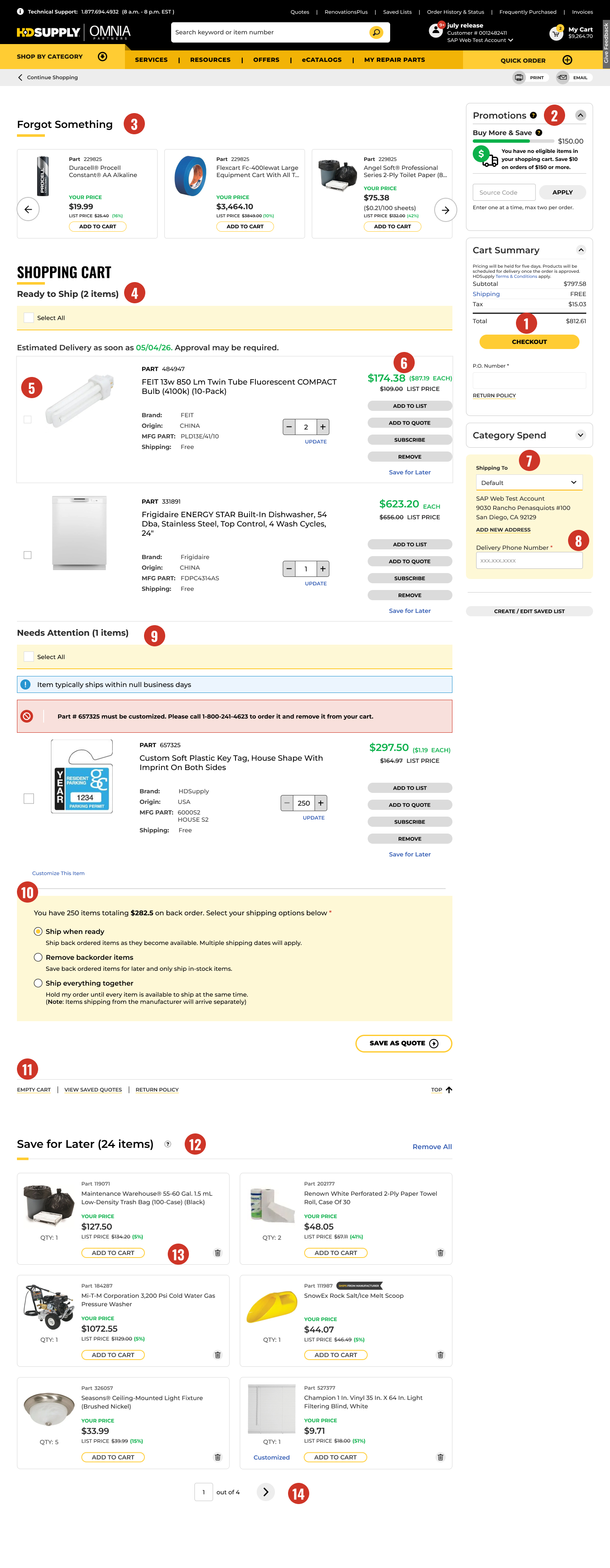
1. Checkout – After reviewing your shopping cart, proceed to checkout by selecting Checkout.
2. Source Code/Special Offer Promotions – If you have a source code for a special offer, type it in the source code field. Be sure to separate multiple source codes with a comma and select Apply.
3. Forgot Something carousel – Discover products based on your recent searches and personalized recommendations to help complete your cart. Select Add to Cart for any item you would like to purchase.
4. Ready to Ship Items – Displays the items in your shopping cart that are currently available for shipping, along with their estimated delivery dates.
5. View Product Detail – Select the product image in your shopping cart to see detailed description.
6. Cart Actions – Use the buttons to add items to a Saved List, create a Quote, Subscribe, or Save for Later.
7. Edit Ship To Addresses – Use your default shipping address, select from saved addresses, or ship to a new one. Choose Add New Address and add a new shipping address.
8. Delivery Phone Number – Provide a contact phone number so delivery drivers can reach you if needed, especially for products shipped directly by the manufacturer.
9. Needs Attention Section – Displays items that have been added to your cart but cannot be purchased due to reasons such as unavailability at your shipping address, discontinued products, or missing required customizations.
10. Shipping Options – Choose how your items are delivered, including shipping all items together or in multiple shipments, with options to allow or exclude backordered items.
11. Empty Cart – To clear your cart, choose Empty Cart or Remove next to each item.
12. Save for Later – Move items from your active cart to the dedicated “Save for Later” section. These items remain available for future review and purchase.
13. Save for Later Actions – From the cart page, you can either move saved items back to your cart using Add to Cart or remove them entirely using the Remove icon.
14. Save for Later Pagination – If you have more than six items in the “Save for Later” section, use pagination controls to browse and view additional saved items.
%22%20fill%3D%22none%22%20fill-rule%3D%22evenodd%22%3E%3Ccircle%20class%3D%22icon__circle%22%20stroke%3D%22%23fff%22%20stroke-width%3D%221.5%22%20cx%3D%227.5%22%20cy%3D%227.5%22%20r%3D%227.5%22%3E%3C%2Fcircle%3E%3Cpath%20class%3D%22icon__path%22%20d%3D%22M7.268%205.207C6.488%205.207%206%204.78%206%204.097%206%203.428%206.476%203%207.232%203c.78%200%201.268.415%201.268%201.098%200%20.682-.476%201.11-1.232%201.11zm-.122%206.422c-.634%200-1.073-.252-1.073-1.066V6.895c0-.802.451-1.066%201.049-1.066h.244c.634%200%201.049.241%201.049%201.066v3.668c0%20.791-.427%201.066-1.025%201.066h-.244z%22%20fill%3D%22%23fff%22%3E%3C%2Fpath%3E%3C%2Fg%3E%3C%2Fsvg%3E)


